Projects / Storage
See where your disk space goes.
Measure your saved projects, see how much space their caches use, and choose which folders to move to Trash.
Built around your workflow
What you can do
Find your largest caches
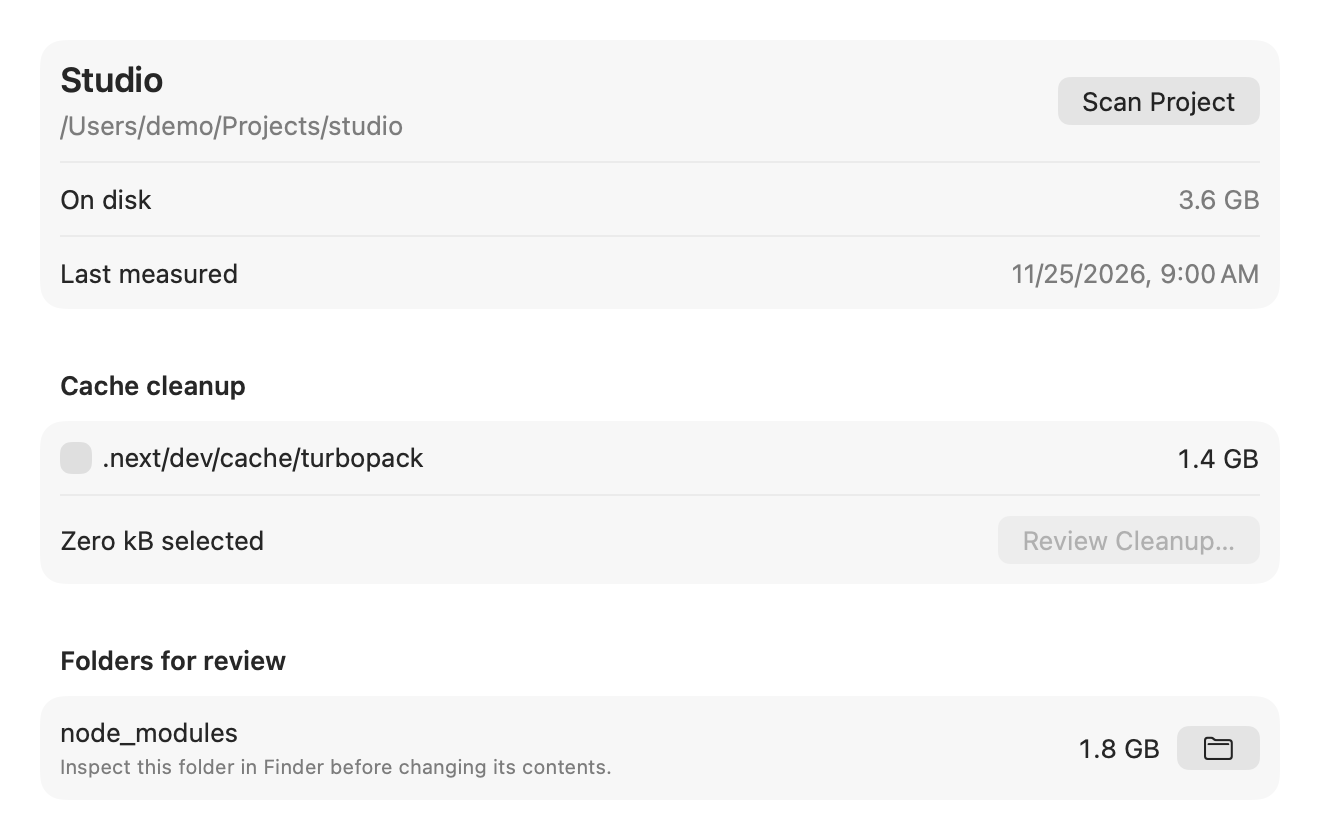
Scan one project or all saved folders. Sort the results by project size or eligible cache size. Each project keeps its last measurement and scan date.
Inspect the folders behind the numbers
See each cache’s path and size. Reveal installed dependencies and build output in Finder when you want a closer look.
Review each move
Only supported, Git-ignored caches qualify. Localhost King checks for tracked files, changed folders, and active project processes again before moving a selection to Trash.
Getting started
From here to your first use.
Choose a project
Open Storage in the sidebar, or choose Manage Storage from a saved project.
Scan its folder
Choose Scan Project. A complete scan lists eligible caches, including supported Next.js and Turbopack cache folders.
Confirm your selection
Select the caches you want, then choose Review Cleanup. Check the paths and sizes before confirming Move to Trash.